
Appearance
Desktop application
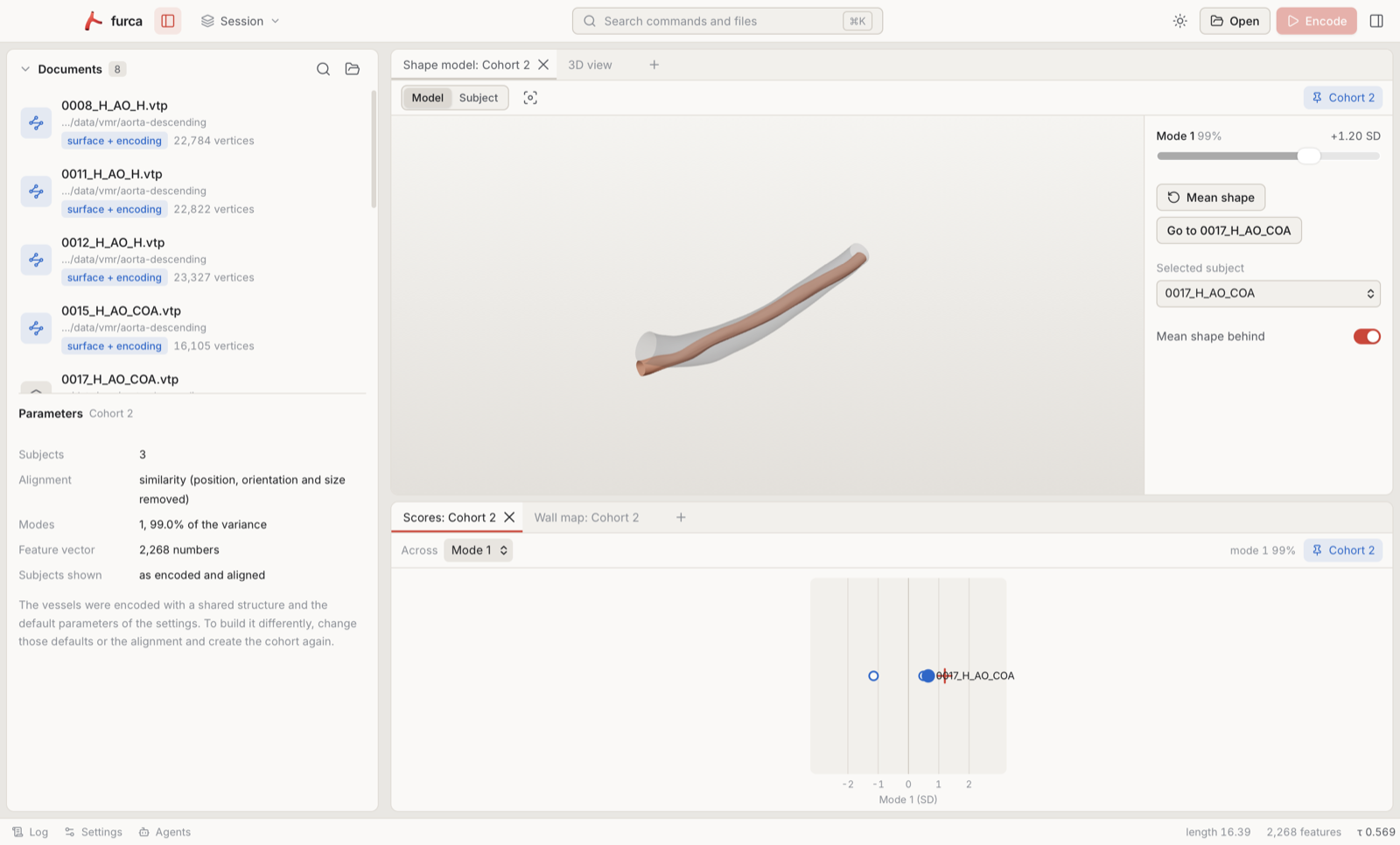
The desktop application shows everything furca computes about a vessel: open surfaces and encodings, set the encoder parameters, encode, and explore the result in 3D, on the wall unrolled, section by section and along the vessel; build cohorts and move along their shape models; export surfaces, encodings and volume meshes. Agents can drive it too (see Agents).
Building and running
The application is a Tauri program in app/: a Rust backend that holds the documents and runs furca, and a web interface. With a Rust toolchain and Node.js (20 or later):
sh
cd app
npm install
npx tauri dev              # build and open the application
npx tauri dev -- -- vessel.vtp   # and open a file at start
npx tauri build            # a packaged application, in target/release/bundle
The window
- The left sidebar lists the open documents and the parameters of the active one. The magnifier filters the list; the folder button opens files. Recent files are folded at the bottom.
- The middle holds the views, in tabs and groups that you arrange: drag a tab beside, above or into another group, or to an edge of the window; the result is previewed while you drag, and releasing outside the window cancels. The + after the tabs of a group adds a view to it.
- The right sidebar shows the summary of the active document (the same report as the command line) and its exports.
- The status bar opens the log and the settings, and shows what is being computed, the active document at a glance and whether agents can connect.
Both sidebars fold away (⌘B and ⌥⌘B) and can be resized by their edges. The command palette (⌘K) finds every command, document and recent file.
Documents
File, Open… (⌘O) opens surfaces (VTP, VTK, STL, OBJ), encodings and shape models (.furca), several at once, and folders, whose surfaces and encodings all open. Files can also be dropped on the window. An encoding and the surface it was made from become one document. Encode (⌘↩) encodes the active document with its parameters; while something is computed the buttons show a spinning wheel.
A view follows the active document unless it is pinned to one: the button with the document's name at the right of its bar pins it, and so does dragging a document of the list onto the view.
Views
| View | What it shows |
|---|---|
| 3D view | The input surface, the encoded wall, the centerline, cross-sections and the selected section; the surface can be coloured by the wall radius, the fold, the position along the vessel, the distance to the model or the harmonic field. The wall of a vessel with branches or lobes can be coloured by the distance to the model, by the flow in which saccular lobes are sought, and by the part of the model (branch or lobe) that represents each vertex; the sacs of its lobes are drawn with their necks and axes. |
| Wall map | The wall unrolled, along the vessel and around it (by the harmonic angle): its distance from the centerline, the shape of its sections (that distance over the equivalent radius of the section), the fold, the error, or (for a cohort) how far a subject's wall lies outside or inside the mean's. Click to select the section. |
| Section | The selected cross-section in its own plane, with the input vertices near it and a slider along the vessel. |
| Along the vessel | Radius, tilt of the sections, fold and error, along the vessel. |
| Lobe | A saccular lobe of a vessel (an aneurysm sac): its radius over its directions, with the wall vertices it models coloured by how far they lie outside it; the power of its spherical harmonics at every degree; and the morphology of its sac. Its degree slider shows the lobes up to a degree of their harmonics, in this view and in the 3D views, to see how the detail of a sac builds up. |
| Shape model | A cohort's shape model, with one slider per mode (see Cohorts). |
| Scores | The subjects of a cohort in its modes, and the variance each mode explains. |
The selected section is shared: moving it in one view (the slider, a click on the wall map or the profiles, ⌘[ and ⌘]) moves it in every view of the document, in every window. A view can keep its own section instead: the link button of its bar unlinks it. 3D views share their camera the same way.
A branched vessel shows its whole wall, with the centerlines of all its branches, in 3D views. The wall map, the section and the profiles show one branch at a time: the branch picker in the bar of every view chooses it, for all the views of the vessel at once. A cohort of branched vessels is a branched document too: its shape view shows the whole wall, and its wall map shows the selected branch. Volume meshes of branched vessels are not available yet.
Windows and workspaces
Window, New Window (⇧⌘N) opens another window of views, and a tab's menu moves a view to a new window. Every window shows the same documents, kept in sync.
A workspace keeps the documents, their parameters, the views and the windows. The workspace menu in the title bar saves it (⇧⌘S), opens another (⇧⌘O) or starts a new one; replacing documents with unsaved changes asks first. Without a workspace, the session is kept and restored at the next start.
Settings
furca, Settings… (⌘,): the theme, restoring the session at start, the number of recent files, the quality of 3D views, the default encoder parameters of newly opened surfaces (also those cohorts are encoded with), and the server for agents.
Keyboard shortcuts
| Shortcut | Command |
|---|---|
| ⌘O | Open files or folders |
| ⌥⌘O | Open a folder |
| ⌘S | Save the encoding (or a cohort's model) |
| ⇧⌘E | Export |
| ⌘W | Close the document |
| ⇧⌘O / ⇧⌘S | Open / save a workspace |
| ⌘↩ | Encode |
| ⌘T | New 3D view |
| ⇧⌘N | New window |
| ⌘B / ⌥⌘B | Fold the left / right sidebar |
| ⌘J | Show the log |
| ⌘K | Command palette |
| ⌘[ / ⌘] | Previous / next section |
| ⇧⌘[ / ⇧⌘] | Jump back / forward along the vessel |
| ⌘, | Settings |